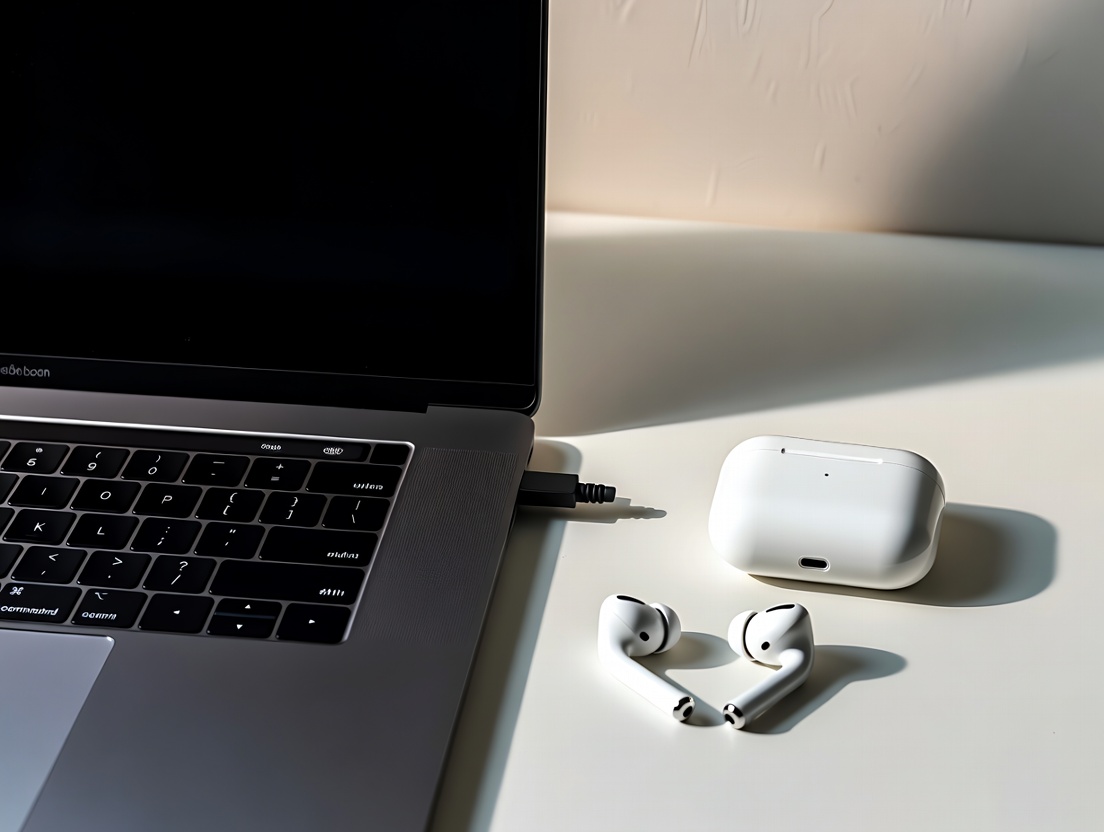
Learning how to connect AirPods to laptop is increasingly important as people shift toward wireless audio for work, study, and entertainment. AirPods are not limited to phones—when paired correctly, they work smoothly with laptops for video calls, online classes, streaming, and productivity.
AirPods use standard Bluetooth technology. This allows them to connect to laptops across platforms, even though they are part of Apple’s ecosystem. Learn about connect AirPods to Windows laptop, connect AirPods to MacBook, AirPods Bluetooth pairing, and AirPods laptop connection.
What You Need Before Connecting AirPods to Laptop
Before you connect AirPods to a laptop, make sure a few basics are in place.
Requirements
- A laptop with Bluetooth support
- Charged AirPods and case
- Updated operating system
- Bluetooth enabled on laptop
Most modern laptops meet these requirements by default.
AirPod Transparency Mode: How It Works
Understanding AirPods Bluetooth Compatibility
AirPods rely on Bluetooth, which makes them compatible with most laptops.
Compatible Platforms
- macOS laptops
- Windows laptops
- Linux laptops (limited features)
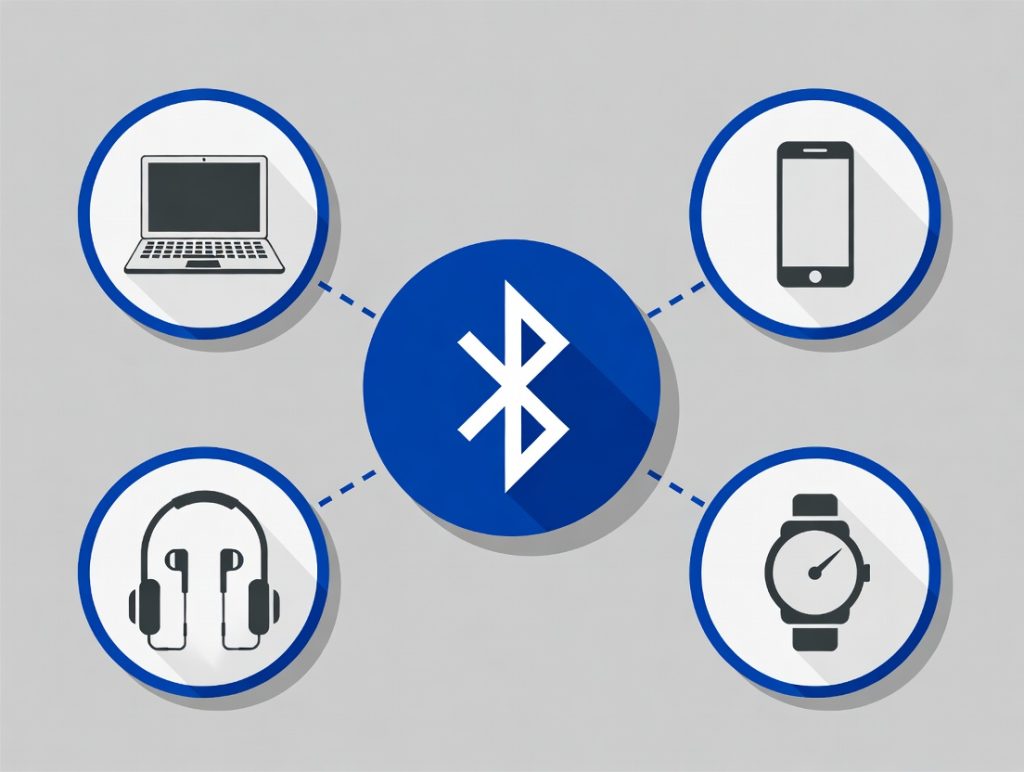
While Apple optimizes AirPods for its own devices, they still function well on non-Apple laptops.
How to Connect AirPods to Laptop on macOS
Connecting AirPods to a Mac laptop is straightforward.
Steps for macOS
- Open System Settings
- Go to Bluetooth
- Put AirPods in pairing mode
- Select AirPods from the list
- Confirm connection
Once paired, AirPods often reconnect automatically.
How to Connect Skullcandy Headphones
How to Connect AirPods to Laptop on Windows
Windows laptops also support AirPods through Bluetooth.
Steps for Windows
- Open Settings
- Click Bluetooth & devices
- Select Add device
- Choose Bluetooth
- Select AirPods when they appear
Although Windows lacks Apple-specific features, AirPods still work well for audio and calls.
How to Connect AirPods to Laptop for First
How To Connect AirPods to Laptop
Step 1: Place AirPods in their charging case
Step 2: Open the lid
Step 3: Press and hold the setup button
Step 4: Enable Bluetooth on laptop
Step 5: Select AirPods from available devices
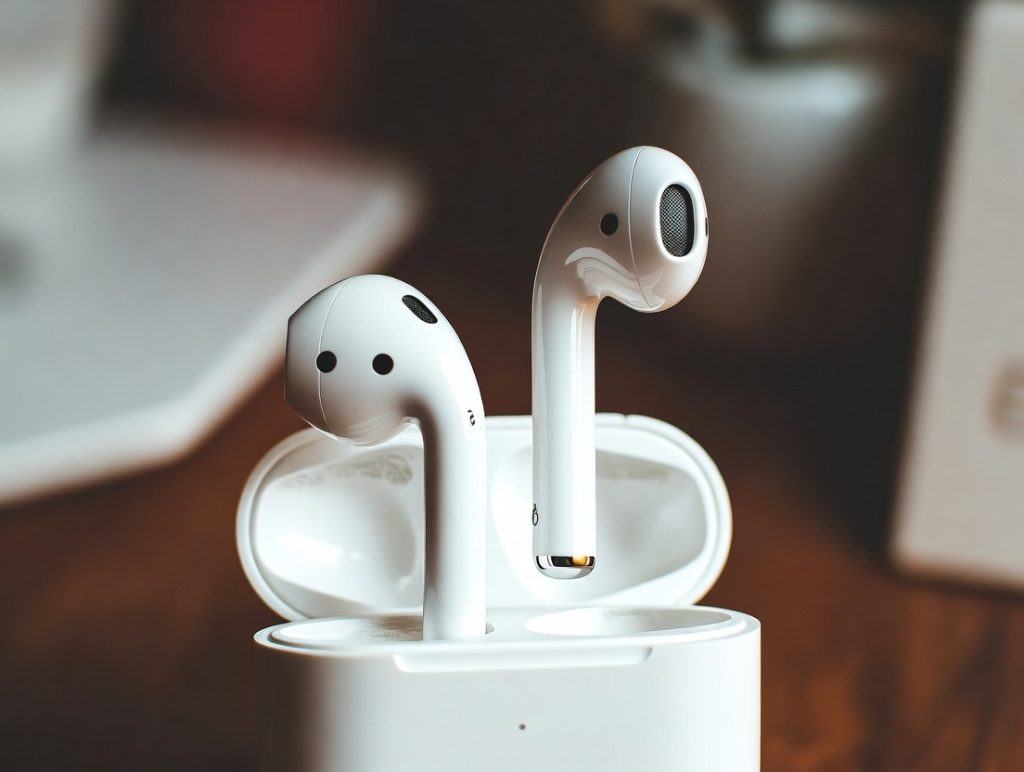
This HowTo process works for both Mac and Windows laptops.
Switching AirPods Between iPhone and Laptop
AirPods can be used across multiple devices.
Switching Tips
- Disconnect from one device before pairing another
- Disable auto-connect if switching frequently
- Use manual Bluetooth selection on laptops
Fixing Common Problems When Connecting AirPods to Laptop
Sometimes AirPods don’t connect smoothly.
Common Issues
- AirPods not showing in Bluetooth list
- Connected but no sound
- Microphone not working
- Frequent disconnections
Quick Fixes
- Restart Bluetooth
- Reset AirPods
- Update laptop drivers
- Re-pair the device
Most connection issues are temporary and easy to fix.
Improving Sound Quality on Laptop With AirPods
You can improve audio performance after connecting.
Optimization Tips
- Set AirPods as default audio device
- Adjust sound settings manually
- Disable unused audio devices
- Keep firmware updated
Good configuration ensures clearer sound for music, calls, and videos.
Using AirPods for Calls, Meetings, and Work
AirPods are widely used for professional tasks.
Professional Use Cases
- Online meetings
- Remote work calls
- Video conferencing
- Online learning
Cross-platform use of devices like AirPods plays into larger debates about digital ecosystems and competition, often highlighted in antitrust enforcement in tech discussions.
AirPods, Cross-Platform Tech, and Digital Competition
AirPods work beyond Apple’s ecosystem, but with limitations.
Industry Context
- Ecosystem integration
- Platform exclusivity
- User freedom
- How to Pair Sony Headphones: Step-by-Step Guide
Tips to Maintain Stable AirPods Connection
To keep AirPods connected reliably:
- Keep Bluetooth drivers updated
- Avoid interference from other devices
- Stay within recommended range
- Keep AirPods charged

Simple habits prevent most connectivity issues.
Security and Privacy Considerations
When using AirPods on a laptop:
- Avoid pairing on public computers
- Remove AirPods from shared device lists
- Turn off Bluetooth when not in use
This ensures privacy and prevents unauthorized connections.
FAQs on How to Connect AirPods to Laptop
Can AirPods connect to a laptop?
Yes, AirPods can connect to any laptop with Bluetooth.
How do I connect AirPods to a Windows laptop?
Enable Bluetooth, put AirPods in pairing mode, and select them from devices.
Why won’t my AirPods connect to my laptop?
Common causes include Bluetooth issues or pairing conflicts.
Can I use AirPods mic on laptop?
Yes, but microphone quality may vary on Windows.
Do AirPods auto-connect to laptops?
They usually auto-connect to Macs but not always to Windows.
Is it safe to use AirPods on public laptops?
It’s safer to avoid pairing on shared devices.
Conclusion: Making the Most of AirPods on Laptop
Knowing how to connect AirPods to laptop allows you to enjoy wireless audio across devices with minimal effort. Whether you’re using a Mac or Windows laptop, AirPods offer reliable sound for work, study, and entertainment.