Introduction
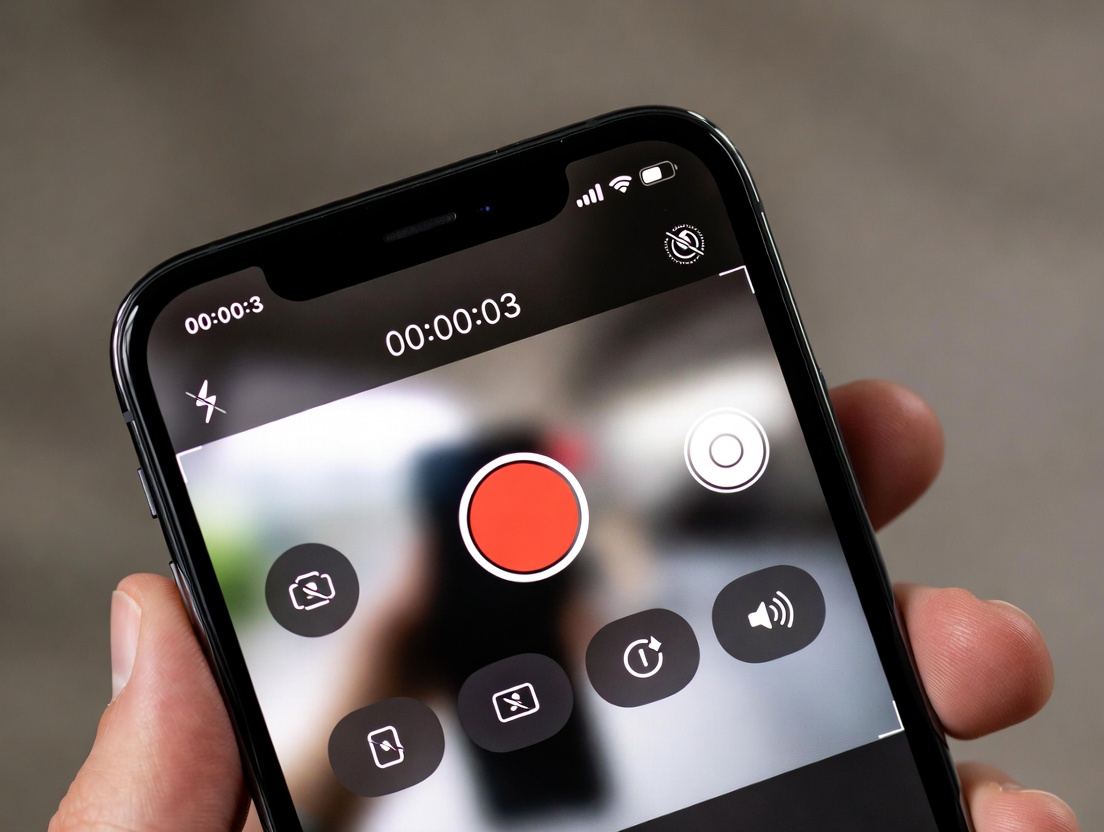
Knowing how to screen record on iPhone has become an essential digital skill. Whether you want to create tutorials, save online content, capture app behavior, or record live information, screen recording allows you to capture exactly what’s happening on your iPhone screen.
It is important to understand that Apple includes how to screen record on iPhone guide and a built-in screen recording feature—no third-party apps required. This makes screen recording on iPhone fast, secure, and easy for everyday users.
What Is Screen Recording on iPhone?
Screen recording on iPhone is a feature that lets you record everything displayed on your screen in real time, including gestures, notifications, and app activity.
In simple terms:
When you screen record on iPhone, your device creates a video of your on-screen actions.
This feature is widely used for demonstrations, bug reporting, educational content, and even saving clips from news or social apps.
iPhone Technology: Future of Smartphones
Why You Might Need to Screen Record on iPhone
There are many practical reasons to learn how to screen record on iPhone.
Common Use Cases
- Creating app tutorials
- Recording gameplay
- Capturing video calls (with consent)
- Saving live streams or presentations
- Documenting technical issues
Many professionals also screen record on iPhone to capture breaking updates from media apps when reporting or sharing insights.
Devices and iOS Versions That Support Screen Recording
Most modern Apple devices support screen recording.
Supported Devices
- iPhone 8 and later
- iPhone SE (2nd gen and later)
- All devices running iOS 11 or newer
If your iPhone is updated, you already have access to screen recording.
How to Enable Screen Recording on iPhone
Before you screen record on iPhone, you must enable the feature.
Steps to Enable Screen Recording
- Open Settings
- Tap Control Center
- Select Customize Controls
- Add Screen Recording
Once enabled, the screen recording icon appears in the Control Center.
How to Screen Record on iPhone
Step 1: Swipe down (or up) to open Control Center
Step 2: Tap the Screen Recording button
Step 3: Wait for the 3-second countdown
Step 4: Use your iPhone as needed
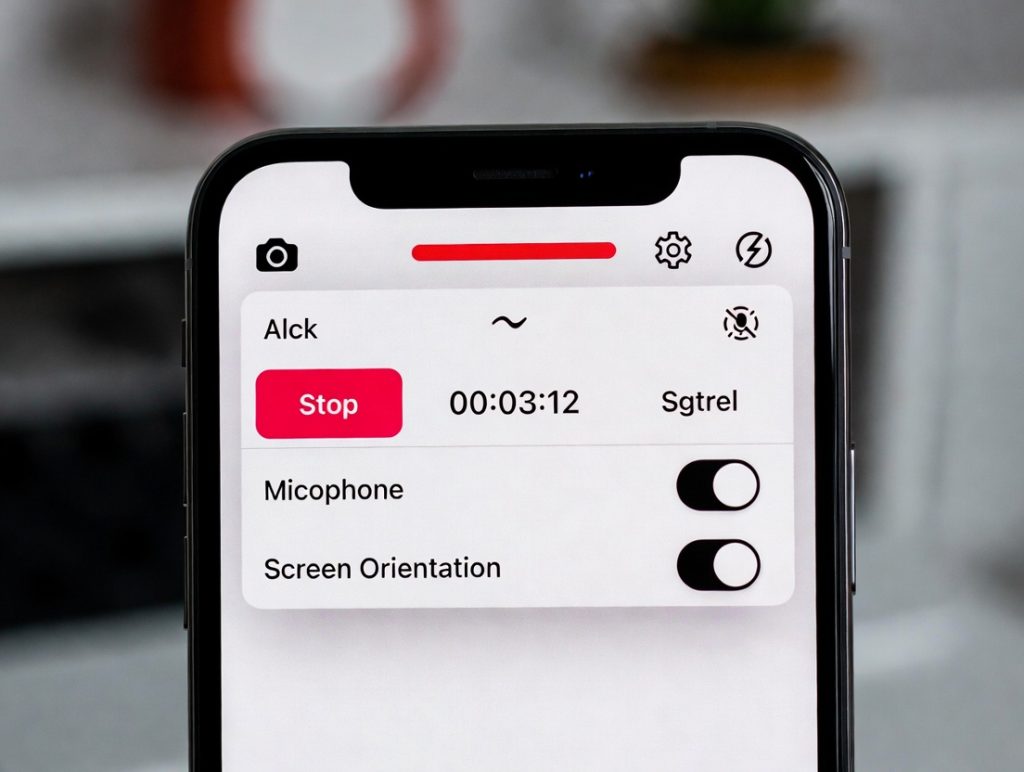
Step 5: Tap the red bar or icon to stop recording
That’s it—you’ve successfully learned how to screen record on iPhone.
How to Screen Record on iPhone With Audio
You can also screen record on iPhone with sound.
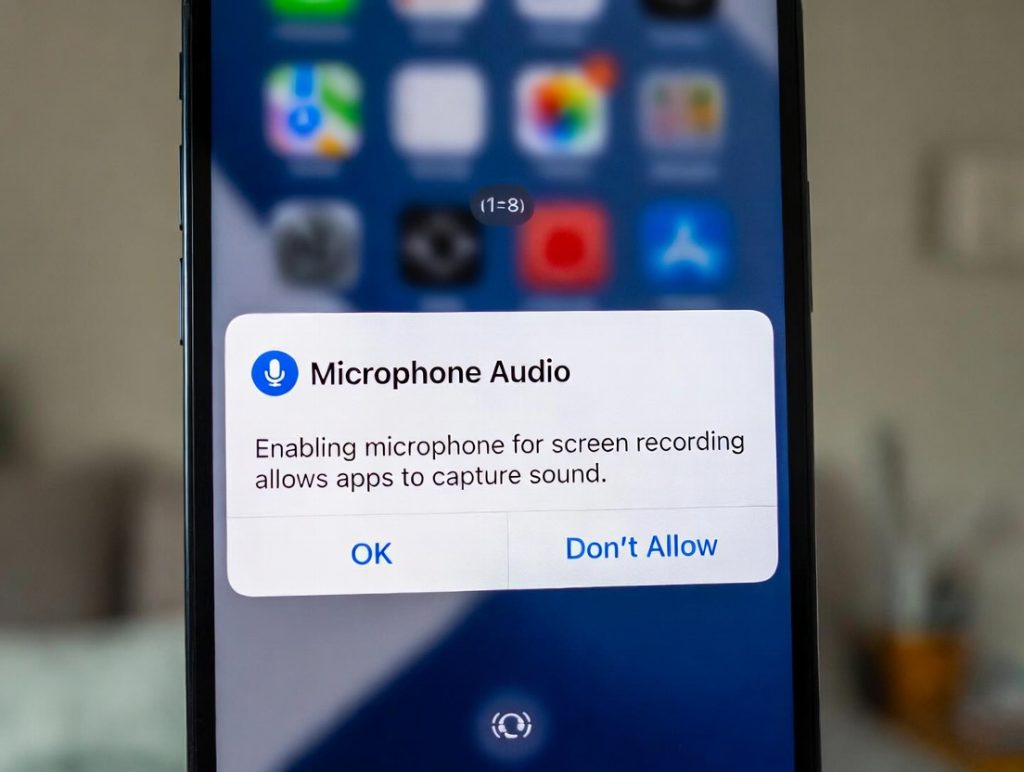
Recording Microphone Audio
- Long-press the screen recording icon
- Enable Microphone Audio
- Start recording
Where Screen Recordings Are Saved on iPhone
After you screen record on iPhone, the video is automatically saved.
File Location
- Saved in the Photos app
- Appears under Videos and Screen Recordings
You can view, share, or edit recordings instantly.
Editing Screen Recordings on iPhone
Basic editing can be done directly on your iPhone.
Editing Options
- Trim start and end
- Crop video
- Adjust brightness and sound
- Add text using third-party apps
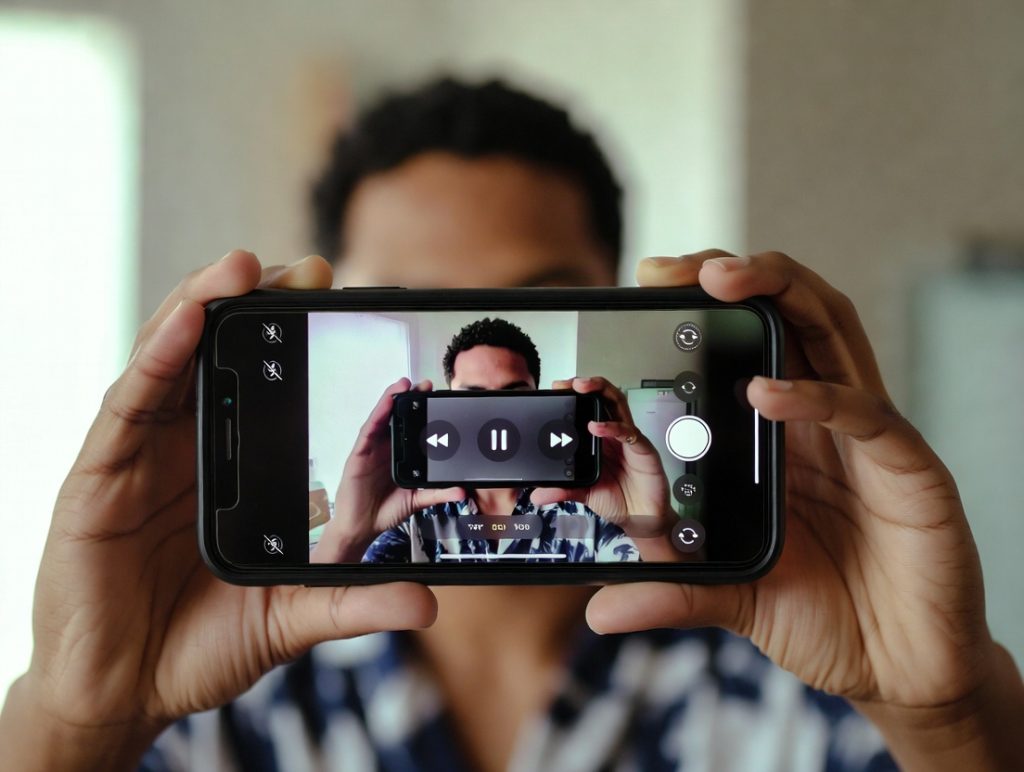
This is helpful when creating polished clips from long recordings.
Common Problems When You Screen Record on iPhone
Sometimes screen recording doesn’t work as expected.
Common Issues
- No sound recorded
- Screen recording button missing
- Recording stops automatically
- App blocks screen recording
Streaming or finance apps covering big investigations may intentionally block screen recording for security reasons.
Tips to Improve Screen Recording Quality
For better results when you screen record on iPhone:
- Enable Do Not Disturb
- Close background apps
- Ensure enough storage space
- Use landscape mode when needed
These tips ensure clear, distraction-free recordings.
Using Screen Recording for News, Tutorials, and Work
Screen recording is widely used in professional settings.
Professional Uses
- App demonstrations
- Educational videos
- Remote troubleshooting
- Capturing live updates from global tech news platforms
It’s a powerful tool for communication and documentation.
Genspark AI: Autonomous Super Agents
Privacy, Legal, and Ethical Considerations
When you screen record on iPhone, always consider privacy.
Important Guidelines
- Get consent before recording calls
- Avoid recording private information
- Respect app and platform rules
FAQs on How to Screen Record on iPhone
How do I screen record on iPhone?
Enable screen recording in Control Center, then tap the record button.
Can I screen record on iPhone with sound?
Yes, you can enable microphone audio before recording.
Where do screen recordings go on iPhone?
They are saved automatically in the Photos app.
Why can’t I screen record certain apps?
Some apps block recording for security or copyright reasons.
Does screen recording reduce performance?
Minimal impact, but closing background apps helps.
Is screen recording legal?
Yes, but consent and content rules must be followed.
Conclusion
Learning how to screen record on iPhone unlocks a powerful feature that’s useful for education, work, troubleshooting, and content creation. With Apple’s built-in tools, anyone can capture high-quality screen recordings in seconds.


